No description
 Thales Maciel
acfc376845
Thales Maciel
acfc376845
Record the independent reviewer pass that closes the first-run UX/docs milestone and archive the raw readiness report under user-readiness. Clarify the README quickstart by naming the default Cmd+m/Super+m hotkey, and align the roadmap plus release checklist with the independent-review closeout wording while keeping milestones 2 and 3 open pending manual validation. Validation: PYTHONPATH=src python3 -m aman --help; PYTHONPATH=src python3 -m unittest tests.test_aman_cli tests.test_config_ui; user-confirmed milestone 4 validation. |
||
|---|---|---|
| .github/workflows | ||
| benchmarks | ||
| docs | ||
| packaging | ||
| scripts | ||
| src | ||
| systemd | ||
| tests | ||
| user-readiness | ||
| .gitignore | ||
| AGENTS.md | ||
| CHANGELOG.md | ||
| config.example.json | ||
| Makefile | ||
| pyproject.toml | ||
| README.md | ||
| uv.lock | ||
aman
Local amanuensis for X11 desktop dictation
Aman is a local X11 dictation daemon for Linux desktops. The supported path is: install the portable bundle, save the first-run settings window once, then use a hotkey to dictate into the focused app.
Supported Path
| Surface | Contract |
|---|---|
| Desktop session | X11 only |
| Runtime dependencies | Installed from the distro package manager |
| Supported daily-use mode | systemd --user service |
| Manual foreground mode | aman run for setup, support, and debugging |
| Canonical recovery sequence | aman doctor -> aman self-check -> journalctl --user -u aman -> aman run --verbose |
| Representative GA validation families | Debian/Ubuntu, Arch, Fedora, openSUSE |
| Portable installer prerequisite | System CPython 3.10, 3.11, or 3.12 |
Distribution policy and user persona details live in
docs/persona-and-distribution.md.
60-Second Quickstart
First, install the runtime dependencies for your distro:
Ubuntu/Debian
sudo apt install -y libportaudio2 python3-gi python3-xlib gir1.2-gtk-3.0 libayatana-appindicator3-1
Arch Linux
sudo pacman -S --needed portaudio gtk3 libayatana-appindicator python-gobject python-xlib
Fedora
sudo dnf install -y portaudio gtk3 libayatana-appindicator-gtk3 python3-gobject python3-xlib
openSUSE
sudo zypper install -y portaudio gtk3 libayatana-appindicator3-1 python3-gobject python3-python-xlib
Then install Aman and run the first dictation:
- Verify and extract the portable bundle.
- Run
./install.sh. - When
Aman Settings (Required)opens, choose your microphone and keepClipboard paste (recommended)unless you have a reason to change it. - Leave the default hotkey
Cmd+munless it conflicts. On Linux,CmdandSuperare equivalent in Aman, so this is the same modifier many users callSuper+m. - Click
Apply. - Put your cursor in any text field.
- Press the hotkey once, say
hello from Aman, then press the hotkey again.
sha256sum -c aman-x11-linux-<version>.tar.gz.sha256
tar -xzf aman-x11-linux-<version>.tar.gz
cd aman-x11-linux-<version>
./install.sh
What Success Looks Like
- On first launch, Aman opens the
Aman Settings (Required)window. - After you save settings, the tray returns to
Idle. - During dictation, the tray cycles
Idle -> Recording -> STT -> AI Processing -> Idle. - The focused text field receives text similar to
Hello from Aman.
Visual Proof
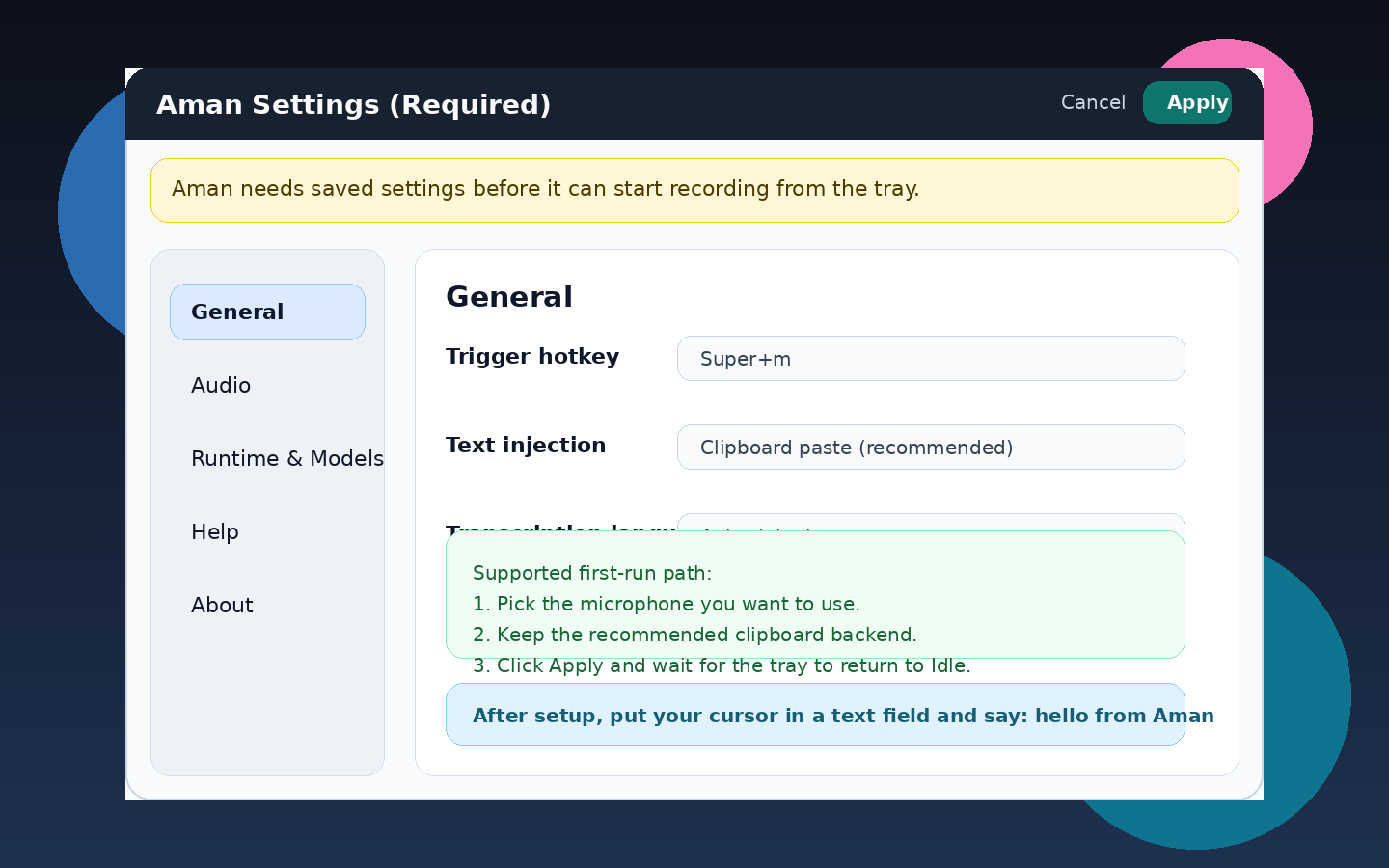
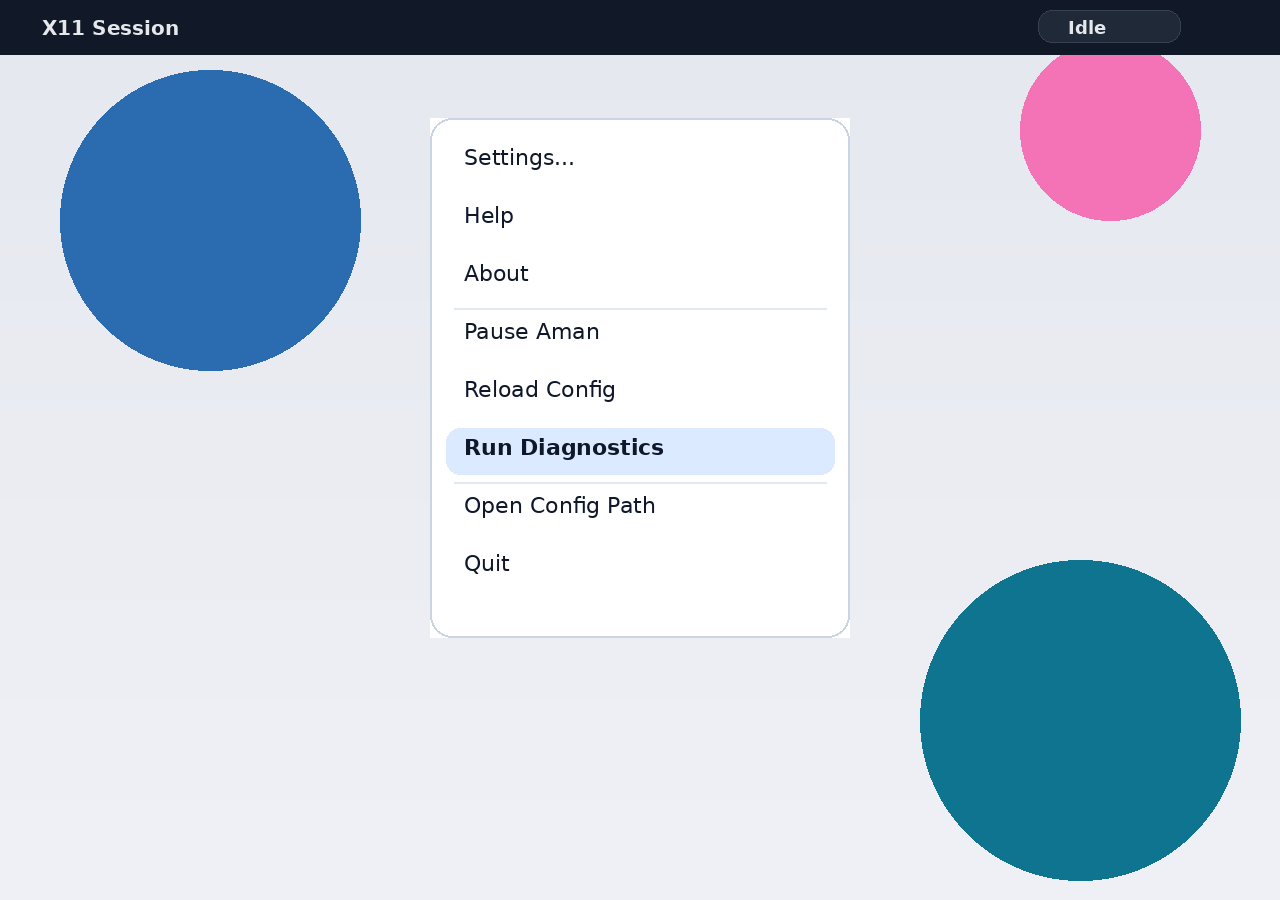
Watch the first-run walkthrough (WebM)
Validate Your Install
Run the supported checks in this order:
aman doctor --config ~/.config/aman/config.json
aman self-check --config ~/.config/aman/config.json
aman doctoris the fast, read-only preflight for config, X11 session, audio runtime, input resolution, hotkey availability, injection backend selection, and service prerequisites.aman self-checkis the deeper, still read-only installed-system readiness check. It includes everydoctorcheck plus managed model cache, cache writability, service unit/state, and startup readiness.- Exit code
0means every check finished asokorwarn. Exit code2means at least one check finished asfail.
Troubleshooting
- Settings window did not appear:
run
aman run --config ~/.config/aman/config.jsononce in the foreground. - No tray icon after saving settings:
run
aman self-check --config ~/.config/aman/config.json. - Hotkey does not start recording:
run
aman doctor --config ~/.config/aman/config.jsonand pick a different hotkey in Settings if needed. - Microphone test fails or no audio is captured:
re-open Settings, choose another input device, then rerun
aman doctor. - Text was recorded but not injected:
run
aman doctor, thenaman run --config ~/.config/aman/config.json --verbose.
Use docs/runtime-recovery.md for the full failure
map and escalation flow.
Install, Upgrade, and Uninstall
The canonical end-user guide lives in
docs/portable-install.md.
- Fresh install, upgrade, uninstall, and purge behavior are documented there.
- The same guide covers distro-package conflicts and portable-installer recovery steps.
Daily Use and Support
- Supported daily-use path: let the
systemd --userservice keep Aman running. - Supported manual path: use
aman runin the foreground for setup, support, or debugging. - Tray menu actions are:
Settings...,Help,About,Pause Aman/Resume Aman,Reload Config,Run Diagnostics,Open Config Path, andQuit. - If required settings are not saved, Aman enters a
Settings Requiredtray state and does not capture audio.
Secondary Channels
- Portable X11 bundle: current canonical end-user channel.
- Debian/Ubuntu
.deb: secondary packaged channel. - Arch
PKGBUILDplus source tarball: secondary maintainer and power-user channel. - Python wheel and sdist: developer and integrator channel.
More Docs
- Install, upgrade, uninstall: docs/portable-install.md
- Runtime recovery and diagnostics: docs/runtime-recovery.md
- Config reference and advanced behavior: docs/config-reference.md
- Developer, packaging, and benchmark workflows: docs/developer-workflows.md
- Persona and distribution policy: docs/persona-and-distribution.md